Account Information Overview
Quickstart Guide
This document describes how to jump in and connect to the API. This guide will get you started, but you should refer to the API Reference to get all the details.
This assumes you have already registered on our user portal and got your client ID and client secret.
Step 1: Get Access Token
Using your access client ID and client secret, exchange these for an access token (ACCESS_TOKEN)
curl -L 'https://auth.monolay.io/oauth/token' \
-X POST
-H 'Content-Type: application/json' \
-H 'Accept: application/json' \
-d '{
  "grant_type": "client_credentials",
  "scope": "read write",
  "client_id": "<your client id>",
  "client_secret": "<your client secret>"
}'
Reply
{
    access_token: "<ACCESS TOKEN>",
    token_type: "Bearer",
    expires_in: 3600
    scope: "ais-authorization-server/write ais-authorization-server/read"
}
Step 2: Create a Consent
Here you are creating an unauthorised consent, which will be authorised by the service user in the next step. Select the institution you want to connect to and the scopes you want to access. The institution name is the name your client banks with, and the scopes are the permissions you want to grant.
curl --location 'https://api.monolay.io/ais/v1/consents' \
--request POST
--header 'Content-Type: application/json' \
--header 'Authorization: Bearer <ACCESS TOKEN>' \
--data '{
    "institutionName": "GB_MONZO_PERSONAL",
    "scope": "ReadAccountsDetail ReadBalances ReadTransactionsCredits ReadTransactionsDebits ReadTransactionsDetail",
    "callbackUri": "https://<your callback url>"
}'
Reply
{
    "authorization_uri": "https://consent.monolay.co.uk/authorize/uB-GzKpFRASHrd8eJn4Qkg",
    "consent_id": "b81f86cc-aa45-4404-87ad-df1e267e1092"
}
Make a note of the consent id, you will need it in the next step.
Step 3. Use the URL
Forward the url returned from step 2 above to your customer to complete the consent journey.
They will be presented with a Consent Screen.
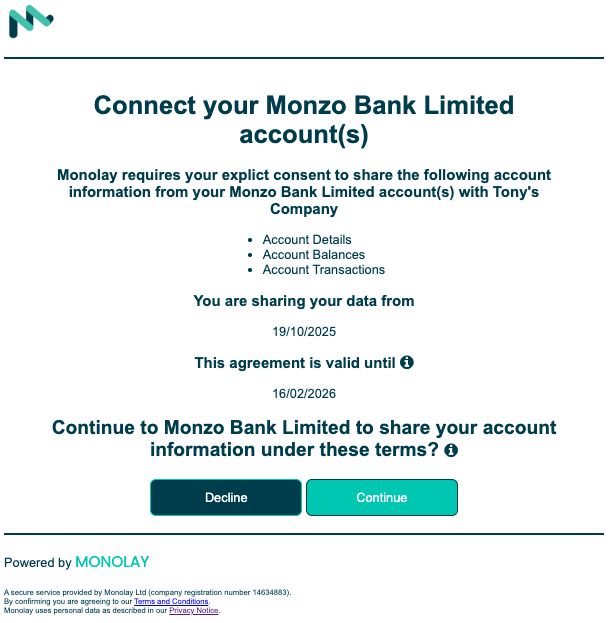
If they chose to 'Continue', they will use their bank login to authorise the consent.
After approval, they will be re-directed back to your callback url from step 2.
Step 4. Check the status of the Consent
Using the consent id from step 2, you can check the status of the consent to verify that it has been authorised and is ready to be used.
curl --location 'https://api.monolay.io/ais/v1/consents/b81f86cc-aa45-4404-87ad-df1e267e1092' \
--request GET
--header 'Authorization: Bearer <ACCESS TOKEN>'
Reply
{
    "agreement": {
        "Data": {
            "ExpirationDateTime": "2026-03-11T14:23:43+00:00",
            "Permissions": [
                "ReadTransactionsDebits",
                "ReadTransactionsCredits",
                "ReadAccountsDetail",
                "ReadBalances",
                "ReadTransactionsDetail"
            ],
            "TransactionFromDateTime": "2025-09-12T14:23:43+00:00",
            "TransactionToDateTime": "2026-03-11T14:23:43+00:00"
        },
        "Risk": {}
    },
    "created_date": "2025-12-11T14:23:43",
    "deleted": false,
    "id": "b81f86cc-aa45-4404-87ad-df1e267e1092",
    "modified_date": "2025-12-11T14:23:44",
    "status": "AUTH"
}
Step 5. Use the Consent
You can now use the authorised consent to get the user account and balances. Although we provide /balances and /transactions endpoints without specifying the account ID, these map to optional endpoints in Open Banking and not all banks support them. It is recommended that you specify the account id as a query parameter.
Step 5.1 Get Accounts
Use the consent id from step 4 to get the accounts for that consent.
curl --location 'https://api.monolay.io/ais/v1/b81f86cc-aa45-4404-87ad-df1e267e1092/accounts' \
--request GET
--header 'Authorization: Bearer <ACCESS TOKEN>'
Reply
{
    "Data": {
        "Account": [
            {
                "Account": [
                    {
                        "Identification": "12345612345678",
                        "Name": "SAM SMITH",
                        "SchemeName": "UK.OBIE.SortCodeAccountNumber"
                    }
                ],
                "AccountCategory": "Personal",
                "AccountId": "100004000000000000000003",
                "AccountTypeCode": "CACC",
                "Currency": "GBP",
                "Description": "Personal Current Account"
            }
        ]
    },
    "Links": {
        "Self": "https://api.monolay.io/b81f86cc-aa45-4404-87ad-df1e267e1092/accounts"
    },
    "Meta": {}
}
Step 5.2 Get Balances
Use the account id from step 5.1 to get the balances for that account.
curl --location 'https://api.monolay.io/ais/v1/b81f86cc-aa45-4404-87ad-df1e267e1092/balances?accountId=100004000000000000000003' \
--request GET
--header 'Authorization: Bearer <ACCESS TOKEN>'
Reply
{
    "Data": {
        "Balance": [
            {
                "AccountId": "100004000000000000000003",
                "Amount": {
                    "Amount": "11357.38",
                    "Currency": "GBP",
                    "SubType": "BaseCurrency"
                },
                "CreditDebitIndicator": "Credit",
                "CreditLine": [
                    {
                        "Amount": {
                            "Amount": "1000.00",
                            "Currency": "GBP"
                        },
                        "Included": true,
                        "Type": "Pre-Agreed"
                    }
                ],
                "DateTime": "2025-12-11T14:17:49.780Z",
                "Type": "CLAV"
            },
            {
                "AccountId": "100004000000000000000003",
                "Amount": {
                    "Amount": "11372.38",
                    "Currency": "USD",
                    "SubType": "BaseCurrency"
                },
                "CreditDebitIndicator": "Credit",
                "CreditLine": [
                    {
                        "Amount": {
                            "Amount": "1252.17",
                            "Currency": "USD"
                        },
                        "Included": true,
                        "Type": "Temporary"
                    }
                ],
                "DateTime": "2024-04-16T11:54:51.187Z",
                "Type": "CLAV"
            }
        ]
    },
    "Links": {
        "Self": "https://api.monolay.io/ais/v1/b81f86cc-aa45-4404-87ad-df1e267e1092/balances?accountId=100004000000000000000003"
    },
    "Meta": {
        "TotalPages": 1
    }
}
If you have grants for transactions, you can follow the same process to get the transactions for that account.